
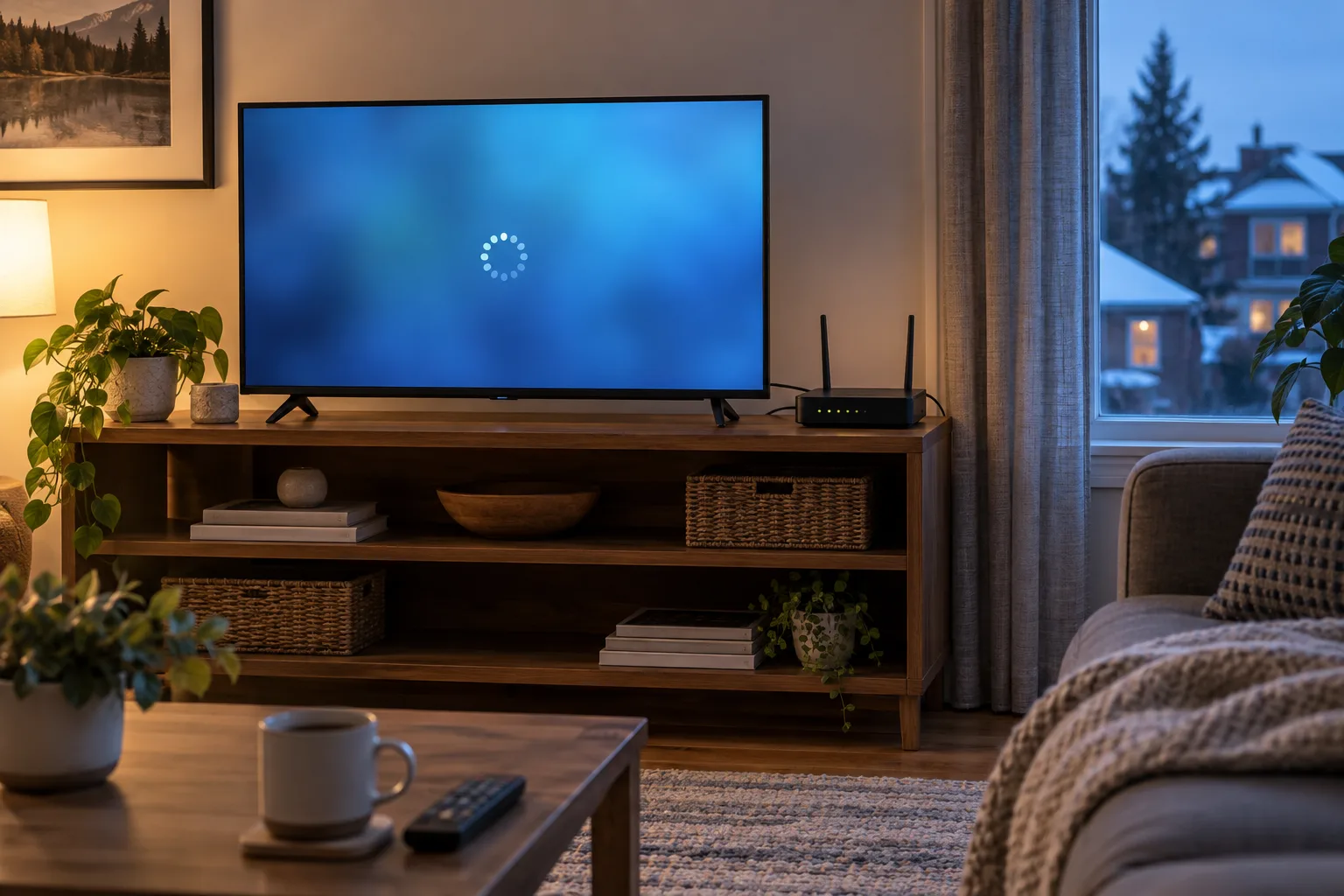
The picture stops, a loading circle appears, and the programme resumes just as you reach for the remote. Before changing your subscription or buying a faster internet plan, make one useful distinction: does the interruption affect one stream, one device, or everything connected to your home network?
That answer gives you a better starting point than a collection of random settings. This guide provides a repeatable way to investigate IPTV buffering in a Canadian household, record what changes, and give support enough information to act. The test sequences and example scenarios below are diagnostic suggestions, not results from a CanadianIPTV device lab.
What is the fastest way to investigate IPTV buffering?
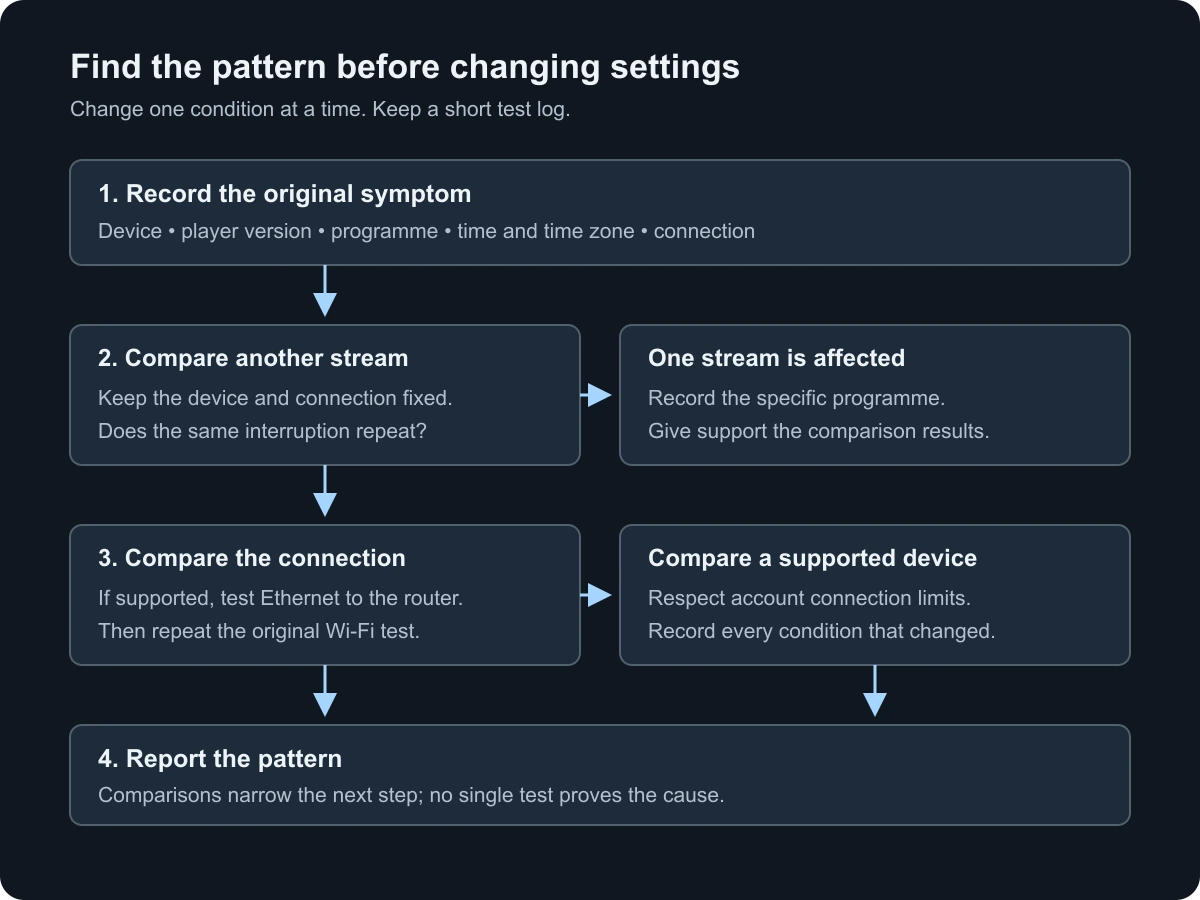
Start with one device and one programme. Compare another stream, then another supported device on the same connection. If practical, repeat the original test over Ethernet instead of Wi-Fi. Change one condition at a time and record the result. If several devices fail only on the same stream, investigate the service or source; if one device fails across services, investigate that device and its connection.
No single comparison proves the cause. The purpose is to narrow the next test without making the problem harder to reproduce.
Identify the symptom before changing anything
“Freezing” can describe several different experiences. A loading indicator followed by resumed playback is different from an app that no longer responds to the remote. Audio continuing while the image stops is different again. Write down exactly what you see, including any error message, instead of treating all three as a slow-internet problem.
Use this table to choose an initial comparison. The final column identifies a useful next step, not a confirmed diagnosis.
| What you observe | First comparison | What to investigate next |
|---|---|---|
| One programme repeatedly pauses | Try another programme on the same device | Stream-specific delivery or availability |
| Every stream in one player pauses | Try another supported player or device | Player configuration, account and device |
| Multiple unrelated services struggle | Compare another device and a wired connection | Home network or broadband connection |
| Menus and remote controls also become unresponsive | Close the player and check normal device navigation | Device resources, software or stability |
| Picture stops but audio continues | Record format and try a supported playback mode | Decoder or playback compatibility |
| An error appears immediately after login | Check the exact error and account details | Authentication, account limits or configuration |
Record whether playback eventually recovers by itself. Also note the approximate interval between interruptions. A problem that appears after twenty minutes needs a longer comparison than a stream that never starts. This simple description prevents a quick, apparently successful test from hiding the original symptom.
Build a small test log
Open a note on your phone or use a sheet of paper. Record the date, local time and time zone, device model, player version, connection type, programme, and visible symptom. Include the quality setting if the player exposes it. You do not need a technical report; six clear lines are enough to start.
Time zones matter when a support team is comparing reports from different parts of Canada. “Around eight” is ambiguous. “8:15 p.m. Eastern on Tuesday” gives someone a much better chance of finding a matching event. Avoid including account passwords, complete playlist URLs or screenshots that expose login credentials.
| Test | Condition changed | Observation | Next step |
|---|---|---|---|
| Baseline | Nothing | Record the original interruption | Choose one comparison |
| Stream comparison | Programme only | Record whether the symptom repeats | Compare device if needed |
| Connection comparison | Wi-Fi to Ethernet | Record duration and interruptions | Repeat under normal conditions |
| Device comparison | Supported device only | Record player and device versions | Investigate the consistent difference |
Leave observations blank until you perform the test. Do not turn an expectation into a result. If you cannot test Ethernet, write “not tested” instead of assuming the network has been eliminated.
Compare streams without changing the device
Keep the player, device, network and location unchanged. Open another programme that you normally use, then return to the original. Give each enough time to reproduce the interruption you recorded. Rapidly changing channels for a few seconds tells you whether they open; it does not show whether they remain stable.
If one stream fails while several others remain usable, that is useful evidence for support. It does not establish whether the cause is the original source, a delivery route, a format difference or another condition. Report the pattern and the exact affected programme rather than claiming to have identified an overloaded server.
If you compare live television with an on-demand programme, label that difference in the log. They may use different delivery behaviour. A smooth on-demand film is not a complete test of the live stream that interrupted earlier.
Also keep simultaneous-connection limits in mind. Close the previous test session before starting another when your account allows only one active connection. Otherwise, your attempt to compare devices may introduce a new account-limit problem and confuse the result.
Compare the TV device with another supported device
Use a second device only if it supports the service and player you are testing. Keep it on the same home connection at first. Try the same programme, preferably in the same room, and record whether you changed both the hardware and the player. Those are two separate variables even when changing them together is unavoidable.
Suppose a television app pauses, but a supported player on a nearby tablet does not. The difference makes the TV, its app and its wireless connection worth investigating. It does not prove that the television is defective. The tablet may use a different Wi-Fi band, decoding method or stream configuration.
If both devices interrupt in the same way, you have a more reproducible issue. Return to the connection comparison rather than repeatedly reinstalling the TV app. If the account has a connection limit, conduct these tests sequentially and allow the earlier session to close.
For installation questions, use the CanadianIPTV installation guide to identify the relevant device instructions. Check the product and version named in the guide against what is actually installed. Similar-looking player names do not necessarily refer to the same application.
Use a wired comparison to investigate Wi-Fi
A short Ethernet comparison can be useful when the TV device supports it. Connect the device to the main router using a compatible cable or manufacturer-supported adapter. Confirm in the device settings that Ethernet is active; plugging in a cable while playback continues over Wi-Fi would not test the condition you intended to change.
For mesh systems, record where the cable connects. A cable from the TV to a nearby wireless mesh point may still leave a wireless connection between that point and the main router. That setup differs from an uninterrupted wired path to the router. Neither observation is useless, but they answer different questions.
If a wired test improves playback, repeat the original Wi-Fi test once before making a purchase. A temporary improvement could have coincided with a change elsewhere. A repeatable difference gives you stronger grounds for adjusting the wireless setup.
Google identifies distance, obstructions, nearby wireless activity and competing household devices as potential Wi-Fi performance factors. Its home-network troubleshooting guidance recommends checking placement and the connection rather than judging performance solely by the broadband plan.
Use that guidance to choose a controlled experiment: move the device or router where practical, then repeat the same playback test. Do not change location, player settings and programme together. In an apartment, a crowded wireless environment is a possibility to test, not something you can diagnose from the building type alone.
Read a speed test as one piece of evidence
A speed-test result describes a test between a particular device and a test endpoint at a particular time. It does not measure every route that an IPTV stream might take. Run the test on the affected device when supported, or explain clearly when the result came from a different device.
For a useful comparison, record the test service, time, connection type and whether normal household activity was running. Avoid testing download capacity at the same moment you are trying to judge uninterrupted playback: the test itself introduces traffic. Measure, then return to the programme under the condition you want to assess.
Cloudflare's explanation of its speed test distinguishes throughput from latency, variation in delay and packet loss. These measurements provide context about a tested connection; they do not identify a particular IPTV provider as responsible for a problem.
Do not apply a universal “good jitter” or “bad ping” threshold from an unrelated application. Instead, compare results taken under similar conditions and note whether unusual measurements coincide with the interruption. A support team can interpret the pattern alongside its own information.
A particularly useful report is specific: the TV connection was tested near the time of the problem, the test was repeated after switching to Ethernet, and the stream behaviour was recorded separately. A screenshot showing only a large download number omits most of that context.
Separate available bandwidth from the plan on your bill
The advertised capacity of a broadband plan is not the same as the capacity available to one player during a busy evening. A household might be streaming on several screens, downloading a game and backing up files. The relevant question is what happens when the affected device is actually being used.
As a limited reference point, Netflix currently recommends at least 3 Mbps for its 720p streams, 5 Mbps for 1080p and 15 Mbps for 4K. Those are Netflix's recommendations, not measured CanadianIPTV requirements or a promise that every stream at the same resolution uses the same bitrate.
Ask the service for any documented requirements relevant to its streams and your number of simultaneous devices. Leave room for the household's other activity. Do not simply multiply a number copied from an unrelated service and call the result a guaranteed subscription requirement.
For diagnosis, temporarily pause a large nonessential download that you control, repeat the playback test, then restore normal usage. If the improvement is repeatable, you have evidence that household load deserves attention. You still need to distinguish a capacity limit from device or wireless behaviour before deciding that a more expensive plan is the right fix.
Restart carefully and protect your settings
Before closing a player, note the programme and any error. Then use the device's normal restart process, following its manufacturer's instructions. Give it time to reconnect before judging the result. Repeatedly cutting power while the device is updating software creates a different problem and is not a troubleshooting shortcut.
Do not confuse restarting with factory resetting. A reset can remove accounts, network details and application settings. It is a poor first experiment when you have not yet recorded the configuration or confirmed how to restore access.
The same distinction applies inside apps. A control labelled “clear cache” may behave differently from “clear data” or “reset application.” Read the relevant player documentation before using it. If a procedure removes your login, ensure you have the correct account details available privately before starting.
Treat a successful restart as an observation. It may restore playback without revealing why the interruption occurred. If the issue returns, record how long normal playback lasted and whether the same programme was involved. That information is more useful than repeating the restart indefinitely and assuming the underlying issue has been solved.
Review software and playback settings one at a time
Record the player and device software versions before updating. Use the official update route for the product you actually own, and read any compatibility notes relevant to your hardware. A generic online instruction may refer to a different product, operating system or release.
For the network equipment, Apple recommends keeping router firmware current and provides settings guidance for Wi-Fi routers. Its recommendations include automatic channel selection where supported. Follow the router manufacturer's procedure and preserve the existing configuration before making changes.
Within a player, a supported playback or decoder option can be worth testing when the symptom suggests a playback issue, such as sound continuing while the image stalls. Record the original value and change one option. If it does not help, restore the earlier value before trying something else.
Avoid copying a screenshot full of “best settings” without checking which player and version produced it. There is no useful diagnosis when several undocumented switches change together and you cannot explain which one affected playback. The goal is a stable, supported configuration that you can reproduce, not the largest number of enabled options.
Investigate evening-only problems with comparable tests
If playback works during the afternoon and fails in the evening, repeat the same short test sequence in both periods. Keep the device, programme where possible, connection type and player version consistent. Record what other household activity was running.
The time pattern alone cannot distinguish home congestion, a broadband issue, a stream-specific problem or service demand. A busy live event introduces another difference: comparing that event with an unrelated afternoon programme does not hold the source constant.
Use two comparisons if possible. First, check the affected programme against another stream during the same evening. Second, compare the affected device on Wi-Fi and Ethernet. If your account allows only one connection, perform the tests sequentially and record the times rather than trying to run them side by side.
Repeat on another day if the problem is intermittent. One quiet evening is encouraging, but it is not enough to establish that a setting permanently solved the issue. Equally, one interrupted programme should not be presented as proof that an entire service or internet provider is unreliable.
Do not make a VPN your first diagnosis
Changing to a VPN changes the network path and adds another service to the test. If playback behaves differently, you have observed a difference under a changed connection. That alone does not prove deliberate throttling, identify the failing network segment or establish that a VPN will reliably solve the problem.
Start with the ordinary stream, device and connection comparisons. If you already use a VPN and both the service terms and your network arrangements permit a comparison, record results with the relevant setting changed, then restore your usual configuration. Do not send account credentials to an unfamiliar service merely because it advertises a buffering fix.
The same reasoning applies to switching DNS providers or installing an unofficial player. A change can affect more than one thing, and it can introduce new uncertainty. Use a documented procedure for a specific problem rather than adding tools until the original symptom becomes impossible to reproduce.
Prepare a support report that can be investigated
Once you have a consistent pattern, stop changing settings and describe it. Contact the appropriate support team with the smallest amount of information needed to reproduce the issue. A provider can investigate an affected stream; your internet provider can investigate the broadband connection; a device or player vendor can help with its own software.
Use this template:
- When: Date, local time and time zone.
- Device: Model, operating-system version and connection type.
- Player: Exact product name and version.
- Symptom: Loading indicator, frozen image, unresponsive menus or exact error.
- Scope: One programme, several streams or unrelated services too.
- Comparisons: What changed, how long you tested and what happened.
- Requested help: The specific condition you would like investigated.
For example, write that one programme interrupted twice during a twenty-minute wired test while a second programme played normally during a comparable period. This is an illustrative report format, not a claim about a CanadianIPTV incident.
Use the CanadianIPTV contact page for service questions and the FAQ for general account guidance. Keep passwords, complete access URLs and other private account details out of public posts. If support needs identifying information, provide it through the appropriate private channel.
Decide whether another purchase is justified
Your test log should explain what a purchase is intended to change. If several repeatable comparisons point to weak wireless performance at the television, consider placement or a supported wired connection before assuming that the broadband plan is inadequate. If a problem follows one player across otherwise useful comparisons, investigate its support options before replacing the router.
An equipment decision should account for the device's supported connections, the layout of the home and the installation you can actually use. A technically capable product is not useful if it cannot connect to your TV or cannot be placed where needed. Avoid buying a replacement solely because an article labels it “best for IPTV.”
When evaluating a different subscription, use the same test log during its available trial period. Confirm the current offer and terms on the trial page, test the devices you intend to use, and include the hours when you normally watch. A successful short trial is useful evidence about those conditions; it cannot guarantee every future programme or network condition.
Frequently asked questions
Why does IPTV buffer when my internet is fast?
A speed result from another device or another time may not describe the affected TV's connection. The stream, player, device and household network also remain possible contributors. Repeat comparable tests on the affected setup and record whether the issue follows a particular stream, device or connection.
Does an Ethernet cable always fix buffering?
No. It can help investigate the wireless part of the connection, but it does not remove every possible cause. Confirm that the device actually uses Ethernet and record whether the cable goes to the main router or to a wireless mesh point. Treat a repeatable improvement as evidence about that comparison.
Should I clear the app cache?
Only use the procedure documented for the exact player and device. Record the symptom first, distinguish cache controls from data deletion, and preserve the details needed to sign in again. A restored session does not by itself explain why the original interruption happened.
Why does only one channel freeze?
The stream-specific pattern is useful information for support, but it is not a complete diagnosis. Compare another programme on the same device, then return to the affected one. Record exact times and whether the issue also appears on another supported device without exceeding account connection limits.
Can I troubleshoot with a phone hotspot?
A hotspot introduces a different access network and may also change the wireless connection. It can provide an additional comparison if your plan and devices permit it, but mobile data charges and limits may apply. Record the changed conditions and do not treat the result as proof about a single network component.
When should I stop changing settings?
Stop when you have a reproducible pattern and a clear support question, or when the next step would require an undocumented change you cannot reverse. Preserve your notes and the last known working configuration. A concise report with controlled comparisons gives support a better starting point than a device changed beyond recognition.