Quick answer: check the Fire TV model before installing a player
To set up IPTV on a Firestick in Canada, identify the exact Fire TV model and operating system, choose a player supported on that device, install it through an official distribution route, and enter the service login supplied for that player. Test one stream before configuring favourites, the programme guide or additional screens. A Fire TV app, an Amazon account and a streaming subscription are three separate things.
The model check matters more than an old tutorial's menu sequence. Amazon now documents both Fire OS and Vega OS products. Its Fire TV Stick 4K Select uses Vega OS, so an Android APK procedure written for another Firestick cannot be assumed to work. Check your device against Amazon's current Fire TV information before choosing an installation method.
This guide provides a setup checklist and a way to locate failures. We have checked the linked documentation, but have not physically tested every device, operating-system version or player in a Canadian household. Where screen labels differ, follow the instructions for your actual model. CanadianIPTV publishes this guide and sells the subscriptions linked from this website; app publishers remain separate businesses.
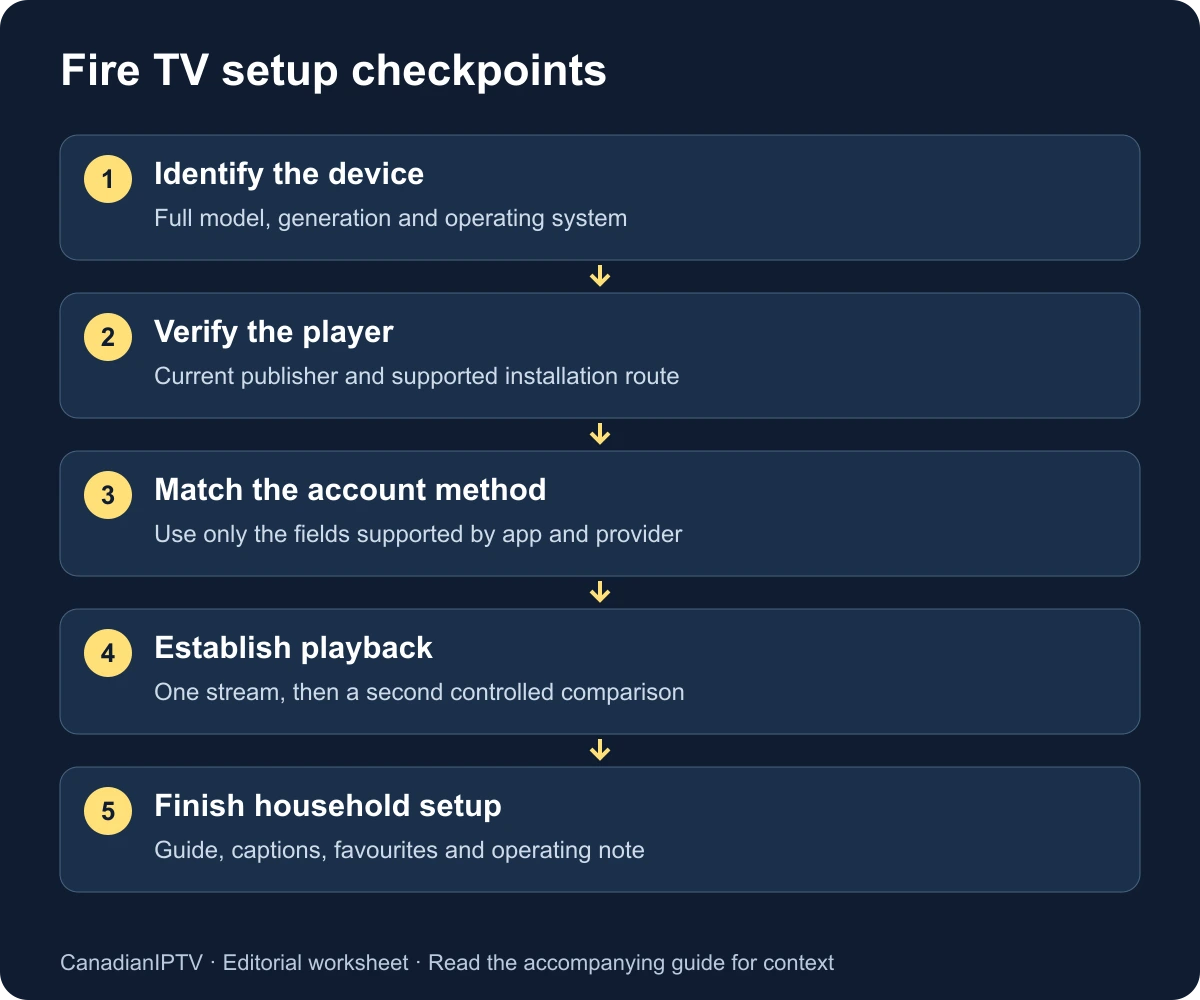
1. Make a five-minute device and account record
Before downloading anything, write down the device's full model name from its settings or original packaging. Include distinguishing words such as Select, Max or Cube and the generation where shown. “Firestick 4K” alone may be too vague for a support agent to identify which instructions apply. Record the installed operating-system version as well, using the device information screen available on your model.
Keep that note next to your television while you work. Add the television brand, the HDMI input you intend to use and the app name suggested by your service. This is a setup record, not a place to store passwords. A photograph of the device information screen can help, provided you crop out account identifiers and serial numbers before sharing it outside a private support conversation.
Separate the accounts involved. Your Amazon account manages the Fire TV device and its app access. A player account may manage premium software features. A service account supplies the streaming entitlement and login details. Paying for a player upgrade does not establish that the service account is active, and changing an Amazon password does not reset a provider password.
| Item to record | Example of useful information | Keep private |
|---|---|---|
| Device | Full model and generation | Serial number when unnecessary |
| Software | Operating-system and player versions | Account identifiers |
| Connection | Wi-Fi or Ethernet; room | Wi-Fi password |
| Service | Provider name and supported login type | Username, password and playlist token |
| Display | Television and HDMI input | Nothing usually required |
2. Confirm a supported installation route
Treat compatibility as two checks: can this operating system run the player, and does that player accept your service's login format? Passing only one is insufficient. A familiar app name in a search result is not proof that its download targets your device, your region or the same publisher that your provider intended.
For an app offered in the device's store, check its listing on the Fire TV itself. Compare the app name and publisher with the publisher's own website. Read any model restrictions and feature requirements before installing or paying. If several results use similar icons, stop and identify the correct publisher rather than choosing the first result by appearance.
For a Fire OS device, some publishers may distribute Android packages directly. That possibility is not a recommendation to install a package from an arbitrary mirror. First confirm the exact model is supported, the publisher provides the download and the current platform permits that route. Do not use a shortened download code from an old article as proof of identity.
For Vega OS, require explicit support for that operating system. Amazon's documentation describes a separate Vega development and installation process; it is not the familiar Android APK workflow. A developer-testing route is not automatically an appropriate consumer installation method. If a supported consumer app is unavailable, use another compatible player or device rather than trying to force mismatched instructions.
| Situation | Next useful action |
|---|---|
| Correct player is available in the device store | Confirm publisher, then install from that listing |
| Publisher offers a direct download for your exact Fire OS model | Review its current requirements and platform policy first |
| Device uses Vega but instructions mention only APK files | Ask for a Vega-supported option |
| Store says the app is unavailable | Check model, region and current publisher guidance |
| Provider cannot identify the intended app | Resolve the app name and login method before paying |
The general installation hub helps you choose a device route. This article concentrates on the Fire TV sequence after that choice; it does not establish universal compatibility for every subscription or player.
3. Prepare the television, power and connection
Connect the streaming device according to the instructions included with your model. Use its supplied or manufacturer-approved power equipment and select the television's matching HDMI input. Finish the device's own setup before adding a third-party service. Amazon's Fire TV Stick setup instructions cover the basic connection and on-screen registration process.
If the television shows no Fire TV screen, focus on the display path first. Confirm the selected input and seated connections. A subscription login cannot repair a missing HDMI picture. Likewise, if the remote cannot navigate the home screen, complete the remote's pairing or battery checks before blaming a player you have not yet opened.
Connect to your normal home network and confirm that an ordinary supported app can reach its service. Avoid starting the first test while the household is intentionally saturating the connection with large downloads. You can assess realistic household load later; the first objective is to establish a simple baseline with as few changing conditions as possible.
If you plan to use Ethernet, verify that your device and adapter combination is supported. Do not buy an adapter on the assumption that every Fire TV model has identical ports or power requirements. If Wi-Fi is your normal arrangement, start there and record the room and router location. That description will make a later wired comparison meaningful.
4. Install and open the verified player
Search for the confirmed app in your device's app section. Open its listing, review any price or in-app purchase information and install it. Amazon's app-download guidance describes finding an app and selecting the download control. The precise screen layout may vary with software updates and account settings.
After installation, launch the player once without rushing into account entry. Find its version information, support link and available login choices. Compare those choices with the setup instructions supplied by your provider. If the app asks only for an activation code but your instructions require a server address, username and password, confirm whether you installed the intended product.
Read any permissions or purchase prompts in context. A premium feature screen may relate to the player rather than your streaming account. Record what the payment unlocks and which company would receive it. You should be able to explain that distinction before proceeding, especially if you have already paid a separate provider.
If an app will not install, note the exact message and available storage rather than repeatedly tapping download. Check whether other store apps download normally. An isolated app failure points toward compatibility or that listing; a general download failure calls for device or store troubleshooting. Preserve the evidence before deleting anything that may contain a working configuration.
5. Match the login fields to the information supplied
Providers and players can use different login arrangements. Common examples include a playlist URL, a server address with a username and password, or a device activation flow. These are not interchangeable text fields. Use the method explicitly supported by both the provider and the installed player; do not manufacture a server address by trimming a link you found elsewhere.
For a separate server-and-credentials form, enter the address exactly as provided, including the protocol and port where specified. Keep the username and password in their own fields. The profile name is often a local label, but verify the form rather than assuming every label has the same meaning. Use a neutral household label that does not expose the password.
For a playlist URL, copy the full supplied link without adding spaces, punctuation or a search-engine prefix. A playlist address may itself include access credentials. Treat the complete address as private even if the app describes it simply as a URL. Never paste it into a public forum, a screenshot generator or a third-party “playlist checker” to troubleshoot a typo.
For an activation flow, verify the destination website through the publisher or provider before entering a code. Check the displayed domain carefully. Do not follow a random search advertisement merely because it repeats the app's name. If the flow differs from your provider's instructions, resolve the discrepancy with that provider before submitting account information.
When the login fails
Check leading and trailing spaces, letter case, similar-looking characters and whether the subscription has actually been activated. Confirm that the details are intended for this particular player and device. An error that appears before the channel list loads is a different stage from a stream that fails after successful login.
Avoid changing every field at once. Correct one suspected issue, retry once and write down the result. Repeated guesses can make it difficult to know which combination was originally supplied. When requesting help, share the app version, login method and exact error through the provider's private support channel; omit passwords from the message unless that authenticated workflow specifically requires secure verification.
6. Establish a simple playback baseline
Once the account loads, choose one stream you are entitled to access and let it play long enough to assess ordinary operation. Record the date, time, device, connection and selected stream. Confirm picture, sound, remote response and whether the player returns to its menu normally. Do this before importing a large set of favourites or making advanced playback changes.
Next, try a second stream with different content. If the first fails and the second works, you have evidence worth retaining; you have not proved the entire device or service is broken. If both fail but another ordinary streaming app works, the account, player or service path deserves closer attention. Keep the tests close together in time so the comparison is useful.
Watch for three different outcomes. A loading indicator suggests playback is waiting for data or preparation. A crash returns you to the device screen or closes the app. A black picture with sound may involve a playback or display issue. Report the actual behaviour instead of calling all three “buffering,” because the next checks will differ.
The detailed buffering diagnostic guide explains controlled comparisons. Use it when the player opens correctly but playback remains unreliable. Buying a faster internet plan should follow evidence about capacity, rather than being the first response to any spinning indicator.
7. Check the guide, time zone and favourites
An electronic programme guide, or EPG, supplies programme information alongside the stream list. Treat its setup as a separate checkpoint. A channel playing successfully does not guarantee that its guide data is complete, current or matched correctly. Conversely, a populated guide does not prove that the listed stream will play.
Start with the device's local date and time settings, then inspect the player's guide options. Canada spans multiple time zones, so compare a programme entry with the expected schedule for the feed you actually selected. An eastern feed and a western feed may legitimately show different schedules. Do not apply a blanket offset until you distinguish a time-zone issue from a different feed.
If your provider supplies a separate guide address and the player accepts one, enter it through that supported option. Do not assume a playlist link can be reused as a guide link. Refresh once, allow the app to finish and check a small sample. Repeated refreshes are unlikely to repair a missing mapping or an incorrect source.
Create a short favourites list after playback and guide checks pass. Include only the streams the household expects to use initially. A smaller list makes daily navigation and future troubleshooting easier. Test that favourites survive closing and reopening the app; if they do not, identify whether they are stored locally or attached to a player account.
8. Test the controls people will actually use
Sit at the normal viewing distance and navigate with the physical remote. Check whether you can enter the guide, return to live playback, select another stream and leave the app without guessing which button to press. A setup that works while standing beside the television may still be awkward from the sofa.
Try subtitles and alternate audio on a stream that actually provides them. Record both the stream and the selected track. A subtitle menu alone is not evidence that every programme includes captions, and an English interface does not guarantee French audio. For a bilingual household, test the specific content and controls that matter to the people watching.
If someone relies on larger text or accessibility features, include that person in the test where practical. Ask them to perform ordinary tasks without coaching every step. Note where focus is hard to see, labels are unclear or text becomes unreadable. Those observations are more useful than a generic claim that an app is easy to use.
Test any parental controls with a non-sensitive sample and verify how the lock behaves after restarting. Keep the PIN out of shared screenshots. Do not assume that a player's content lock also protects purchases, account changes or the Fire TV home screen; those controls can belong to separate systems.
9. Use a failure-to-next-step checklist
| Observed problem | Check first | Useful evidence for support |
|---|---|---|
| No Fire TV home screen | Power, HDMI input and device setup | Whether any device screen appears |
| App absent from store | Exact model, OS, region and publisher support | Model and listing link |
| Installation fails | Compatibility, storage and other app downloads | Exact store message |
| Login rejected | Supported method, copied fields and activation | App version and redacted error |
| List loads but one stream fails | Another stream on the same setup | Two stream names and timestamps |
| All streams fail | Account state, another permitted device, normal internet access | Controlled comparison results |
| Guide is empty or shifted | Guide source, device time and selected feed | Example programme and expected time |
| App closes unexpectedly | Reproduction steps, software version and available storage | Last action before the crash |
Keep a working setup intact while you investigate. Before clearing application data or reinstalling, record how to restore the account and favourites. Clearing a cache and clearing application data can have different consequences; follow the current device and player documentation instead of treating them as equivalent buttons.
A factory reset is a disruptive troubleshooting step. It should come after narrower checks and a recovery plan, not before you have identified whether the problem is limited to one stream. If support suggests a reset, ask what observation makes it relevant and what information must be preserved first.
10. Complete a household handover
Finish by writing a short operating note: the television input, player name, how to open favourites, how to return home and where to request help. Store credentials separately in an appropriate password manager. The person who completes installation should not be the only person who knows how to recover from accidentally leaving the app.
Repeat a short playback test during the household's normal viewing period. Include ordinary background internet use, while respecting the service's actual simultaneous-connection allowance. Record any difference from the quiet baseline. A single successful afternoon test does not establish how the same arrangement behaves every evening.
Save the final device and app versions with your notes. When an update changes behaviour later, that record gives you a useful before-and-after reference. Recheck the installation route after a major platform change, and keep the official publisher link rather than an old downloaded package of uncertain origin.
If you still need an account to evaluate, review the current details on the trial page. Confirm the supported player, trial conditions and connection allowance before starting. This guide does not promise a particular trial duration, channel catalogue or device compatibility beyond what your current offer explicitly states.
Before declaring setup complete, check that the household knows which company to contact for an app purchase and which company handles the service account. Save those verified destinations with the operating note. This avoids a future search for a similarly named support website when something changes.
Frequently asked questions
Can every Firestick run the same IPTV app?
No. Check the full model and operating system, then verify the app publisher's support for that combination. An installation guide for an Android-based Fire OS device should not be assumed to apply to a Vega OS device. The app's current device-store listing is a useful additional check.
Does buying a player include a streaming subscription?
Do not assume it does. A player purchase may unlock software features while the streams require a separate service account. Read the app listing and the provider's offer to identify what each payment covers. Keep their support contacts separate so an account issue reaches the correct company.
Should I change advanced playback settings immediately?
Start with the supported defaults and establish a baseline. If a specific problem remains, change one relevant setting at a time and record whether it helps. Changing several decoding, buffer and display options together makes it difficult to identify which adjustment affected the result.
Why does the programme guide work when playback does not?
Guide information and video delivery are different parts of the experience. A visible schedule confirms that some guide data loaded, not that the selected stream is reachable or playable. Test another stream and record the failure stage before changing the guide configuration.
What should I send when asking for installation help?
Send the exact Fire TV model, operating-system version, player name and version, connection type, login method and error message. Explain the last successful step. Use a private support channel and redact passwords, playlist tokens and unnecessary account identifiers. A precise stage-by-stage report is easier to act on than “it does not work.”