Quick answer: identify the app, then match its login method
An IPTV Smarters setup starts with the exact app and publisher, not just the word “Smarters.” Install the version supported on your device, confirm which account or playlist format it accepts, and enter the details supplied for that format. Establish playback first, then check programme-guide data, time settings, favourites and any premium features you need.
The current Smarters Pro publisher website describes a media player with separate platform downloads and states that it does not supply channels or subscriptions. It lists M3U and JSON support. Treat app purchases and streaming-service purchases separately, and check the current download for your platform instead of assuming that every older Smarters tutorial describes the same product.
This is a version-aware configuration and troubleshooting guide. It explains what to verify when screens differ; it is not a claim that we physically tested every current Smarters release. CanadianIPTV sells services through this website and is separate from the app publisher. The illustrations are conceptual, not screenshots of a verified login screen.
Start with an app identity record
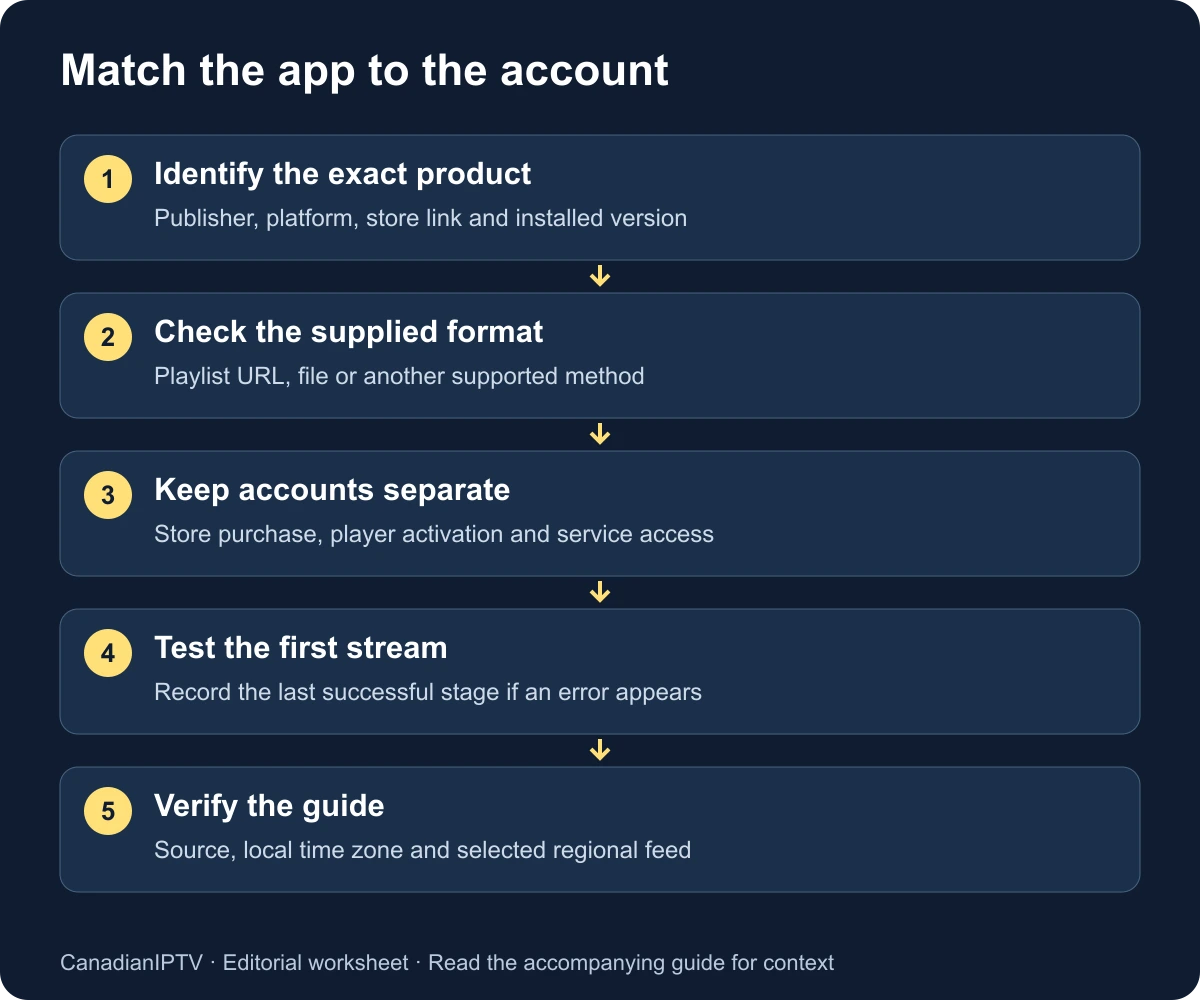
Write down the complete app title, developer or seller, store link and version number. Include the platform: Android phone, Android TV, Apple TV and a television's own operating system are different targets. A guide that begins with a phone interface may not describe the remote-control version on your television.
The publisher-linked Android TV Google Play listing identifies Tech Smarters and describes M3U and JSON playlists. Separately, Apple's Canadian store carries a Smarters Player Lite listing. Those titles should not be treated as interchangeable labels for one identical interface or purchase entitlement.
Start from the publisher's platform links and verify the destination listing. A familiar icon, a high search position or “Pro” in a title is insufficient evidence of identity. If your provider requests a particular product, ask for its exact store link and supported login format. Resolve any conflict before entering private service credentials.
Record whether an existing player purchase belongs to a store account, a publisher account or another activation system. Do not assume a purchase transfers between similarly named products or operating systems. If you are migrating from an older installation, retain its app identity and purchase receipt while investigating what the new version supports.
Separate the three things that can require a login
The device's store account handles app installation and possibly purchases. A player account may handle software activation, preferences or premium features. The streaming provider's account handles the content service. These accounts can use different usernames and different password-reset processes, even when the same email address appears in more than one place.
Before typing, identify which system is asking. Look at the screen title, linked domain and explanation beside the form. A premium upgrade form is not necessarily asking for the credentials in your subscription email. A playlist form is not necessarily asking for the password used to purchase the player.
Use a short private worksheet to map the systems. It need not contain actual passwords: “store account in password manager,” “player receipt saved,” and “service details supplied through support portal” are enough. The aim is to avoid sending a password to the wrong company or attempting to fix a service failure through an unrelated app-store reset.
| System | Typical purpose | Question to resolve |
|---|---|---|
| Device or app store | Install apps and manage store purchases | Which store account owns the app? |
| Player publisher | Software features or activation | What does a premium purchase unlock? |
| Streaming provider | Account entitlement and stream access | Which player and login format are supported? |
Match the supplied details to an available method
Do not choose a login method by trial and error. Compare the provider's instructions with the actual options on screen. If your current version accepts a playlist but your provider supplied a different form of account access, ask whether it can supply a supported format. Do not infer compatibility from an old blog screenshot.
The examples below describe common arrangements you may encounter across players or versions. They are not a promise that every Smarters app exposes all of them. Labels, available methods and required fields can change, so the installed product's current documentation takes priority over a generic sequence.
| Information you received | What to verify before entry |
|---|---|
| Complete M3U playlist URL | Current app accepts URL playlists; preserve the entire address |
| Local playlist file | App supports file import; file comes from an authorized source |
| Server address, username and password | Current version exposes the corresponding provider-supported form |
| Activation code or device pairing instruction | Official activation domain and exact intended app |
| JSON source | Required format matches the current app's documented expectations |
A label you choose for a local playlist is not necessarily an authentication field. Use a recognisable name such as “Living room” where the app asks for a profile label. Avoid placing your password in that name: profile labels may be visible on screenshots or to other people using the television.
Enter a playlist without changing its meaning
If the app supports the complete URL you received, paste that address into the playlist URL field. Check the beginning and end after pasting. Messaging apps can add punctuation, line breaks or surrounding quotation marks; a television keyboard can introduce a trailing space. Correct obvious copying errors without changing the underlying address.
A playlist URL may contain a username, password or access token inside its query string. Its appearance as a web address does not make it public. Do not send it to an unknown conversion website, post it in a community discussion or include it in an unredacted screenshot. Ask the provider for a replacement if the address was exposed.
If the app offers local file import, verify how the file reaches the device and whether importing it creates a static copy. A file saved earlier may not reflect later provider changes. Ask how updates are delivered before assuming the imported list will stay current. Keep an original private copy only when you have permission and a reason to retain it.
After import, record what actually appears: a successful confirmation, a list of categories, an empty list or a parsing error. These outcomes indicate different failure stages. An empty list after a successful connection deserves a different question from an address that cannot be reached at all.
Enter separate account fields carefully
Where the current app and provider support separate server, username and password fields, preserve the supplied protocol and any port. Do not replace the server address with the provider's public marketing homepage unless the provider explicitly says they are the same. A working homepage is not evidence that it is the correct media endpoint.
Check whether the username is an email address or a separate service identifier. Copy the password exactly, including case and punctuation. If you use an on-screen keyboard, inspect confusing characters individually rather than repeatedly entering the whole form. Keep password visibility off when other people or recording devices can see the screen.
If an error persists after verifying the supplied details, stop guessing. Confirm activation, expiry and permitted devices through the provider's private support route. Ask whether the credentials are issued for this specific login arrangement. A clear explanation of the installed app and its fields is more useful than asking for an unspecified “Smarters password.”
Test playback before organising the library
Choose one stream you are entitled to access and play it before changing categories or premium settings. Confirm picture, sound and ordinary remote navigation. Then try a second stream. Write down which succeeded and the time of the test. That small baseline makes later failures easier to describe.
If categories appear but no stream starts, distinguish a playback error from an account-login rejection. The list may have loaded through one request while video delivery fails at a later stage. Check the exact error, whether the problem affects every stream and whether the same permitted account works on another supported setup.
Avoid evaluating picture quality from a thumbnail or programme description. Observe actual playback on the television you intend to use. If quality varies, record the selected stream and any displayed technical information without treating a channel name containing “4K” as a measured resolution. A label is not a playback measurement.
For interruptions after playback begins, use the buffering guide. Keep your login configuration unchanged while comparing the network or device, unless the evidence specifically points to account entry. Re-entering a correct password will not explain why one stream freezes after several minutes.
Configure the programme guide as a separate task
An electronic programme guide supplies schedule information. Where your installed version offers an EPG function, first determine whether it is supplied automatically by the account method or requires a separate guide source. Ask the provider rather than assuming a playlist URL and a guide URL can be used interchangeably.
Check the device's clock and local time zone. Then inspect one programme whose schedule you can verify for the exact selected feed. Canada has multiple time zones, and regional feeds may carry different schedules. Comparing the wrong regional feed can look like a time-offset problem even when the application's clock is correct.
Refresh the guide once through the supported control and allow it to finish. Check several entries, including the current programme and the next programme. Record whether titles are missing, times are shifted or entries belong to the wrong stream. These are different symptoms and may require different corrections.
If a manual offset exists, use it only after identifying a consistent offset. Note the original setting so you can reverse the change. Applying a global adjustment to fix one incorrectly mapped channel can make the rest of the guide wrong. A missing source or incorrect channel mapping will not be repaired by shifting time.
A small guide verification worksheet
| Check | Record |
|---|---|
| Selected stream and regional feed | Exact visible label |
| Local time and time zone | Time of observation |
| Current programme in guide | Title and displayed start time |
| Expected programme | Source used for comparison |
| Scope of problem | One entry, one group or the whole guide |
| Refresh or setting tested | One change and its result |
Use the worksheet before requesting support. “The eastern feed shows yesterday's programme after a completed refresh” is a more actionable description than “EPG broken.” Keep access URLs out of the report unless the provider's authenticated support process specifically needs them.
Build favourites and test everyday navigation
After playback works, create a small favourites list with the household's most-used content. Test selecting, reordering and returning to that list using the actual remote or touch controls. Close and reopen the player to see whether the changes persist. Do not assume that local favourites automatically synchronise to another device.
Check language and subtitle controls on content known to carry the required options. The presence of a menu does not ensure that every stream has French audio, English captions or an alternate track. Record the specific programme and result, especially when accessibility is a requirement rather than an occasional preference.
If a setting is behind a premium purchase, verify the cost and purchase scope in the current app before paying. Decide whether that feature is essential to your household. An upgrade that adds convenience is different from a service entitlement, and it should not be presented as a way to repair an unrelated account or network problem.
For parental controls, establish a private PIN and test a harmless example. Check what is actually protected: content categories, app settings and purchases may have separate controls. Avoid storing the PIN in a profile title or leaving it visible in the operating note beside the television.
Diagnose errors by the last successful stage
| Symptom | First comparison | Next question |
|---|---|---|
| App cannot be installed | Exact platform and publisher listing | Is this device supported now? |
| App opens but expected login method is absent | Current version against provider instructions | Was a different product or version intended? |
| Credentials rejected | Original supplied fields and account status | Is this method enabled for this account? |
| Playlist import reports an error | Complete URL or supported file format | Is the source valid for this player? |
| Categories load but all video fails | Another stream and permitted device | At which playback stage does failure occur? |
| One stream fails | Other streams on the same setup | Is that particular source available? |
| Guide is blank | Guide source and completed refresh | Is guide data supplied for these entries? |
| Guide times are wrong | Local zone and exact regional feed | Is the offset consistent or isolated? |
| Favourites disappear | Close/reopen and account storage model | Are preferences local or synchronised? |
Work down to the failed stage instead of starting over with installation every time. If the app opens, logs in and plays most streams, reinstalling it may erase useful settings while leaving a single source problem unchanged. Preserve a working configuration until you have a specific reason to replace it.
If a player setting appears relevant, change only one option and use the same test stream. Write down the previous value. Keep a change only when you can explain what improved and reproduce the result. A long list of settings copied from another household is not a reliable substitute for an observed baseline.
Keep a safe recovery and migration record
Before clearing data, reinstalling or moving to another device, record the app identity, account method and location of the original service details. Note any favourites or settings you would need to recreate. If the app offers export or backup, check what the file contains and whether it includes private access information.
Store backups securely and avoid emailing them to yourself without understanding their contents. When asking an app publisher for help, share only the information needed for that issue. The publisher may need a version number and error description; your streaming provider may need an account reference. Neither automatically needs every credential used by the household.
When moving to a second device, check the provider's simultaneous-connection allowance before leaving both players running. Distinguish the right to install the software on several devices from permission to stream on them concurrently. Also verify whether a premium app purchase transfers to the destination platform; do not infer that from successful service login alone.
Retain the old setup until the new one passes a short acceptance test, if the service terms allow that comparison. Then remove private details from a device you will sell, return or give away using the appropriate device procedure. A migration is complete when the new setup works and the old device no longer exposes your account.
Prepare a useful support request
Start with the exact app, publisher, version and device. State the login arrangement without including its secrets. Describe the last successful step, the first failed step and whether the result repeats. Include a timestamp and time zone so support can distinguish a current problem from an earlier event.
An example format is: “The player imports the list successfully on my Android TV device. Two named streams play, while a third displays this error at 8:15 p.m. Eastern. I have not changed the login details. A refresh completed but did not change that result.” This is an illustrative report, not a test we performed.
Attach a redacted screenshot only if it clarifies the error. Inspect the entire image for playlist addresses, account names, QR codes and tokens, including small text near the edge. Use the CanadianIPTV contact page for service-account questions and the verified publisher support route for app licensing or product-specific issues.
If you have not chosen a device, return to the installation hub. If you are comparing players, use the app-selection guide rather than assuming a familiar app name is the best fit for every platform. The correct setup begins with a compatible combination you can explain and maintain.
Frequently asked questions
Are Smarters Pro and Smarters Player Lite identical?
Do not assume they are. Record the exact product, publisher, platform and version, then follow its current listing and documentation. Different titles can have different interfaces, supported methods and purchase arrangements. This guide identifies the distinction rather than promising feature parity between them.
Can I use any M3U link I find online?
Use only sources you are entitled to access and that your player supports. An arbitrary public link may be unavailable, unsuitable or expose you to an untrusted service. For a paid account, obtain the intended source directly from the provider through its verified support or account channel.
Why do channels load but the guide remains empty?
The channel list and programme guide are separate information. Your account may require a separate guide source, or particular entries may lack matching schedule data. Confirm the guide arrangement and inspect a completed refresh before changing time offsets or reinstalling the player.
Will paying for premium fix buffering?
A premium purchase should be evaluated against the features it explicitly unlocks. It does not establish that the network, device or stream source is healthy. Diagnose the actual interruption and test relevant settings before treating another purchase as a solution.
Should I send my complete playlist URL to support?
Treat the URL as sensitive because it may contain access credentials. Begin with a redacted description and use a verified private support route. Supply additional account information only through the appropriate authenticated process, never in a public review, forum post or shared screenshot.