
Quick answer: choose an IPTV player around your device and daily tasks
The most suitable IPTV app is one that currently supports your exact device, accepts your authorized content source and makes everyday viewing manageable. Start with those requirements, then compare guide navigation, subtitles, accessibility, favourites, account privacy and the software's purchase terms. A long feature list is less useful than a player that the household can operate reliably.
This comparison covers software players, not streaming providers. It uses current publisher and store documentation for a small shortlist: TiviMate, Sparkle TV and Smarters Pro. It does not rank their performance from invented tests, promise availability on every Canadian device or treat an app purchase as a channel subscription. CanadianIPTV publishes the guide and sells services elsewhere on this website.
The comparison was researched on September 8, 2026. Store availability, supported operating systems and purchase terms can change. Documentation establishes a starting point; your exact device, account region and installed release still need verification. Where a fact could not be established, it is marked for confirmation instead of being converted into a recommendation.
Separate the player, provider and device
A player is the software interface you use to open a content source. A provider controls the service account and supplied streams. The device supplies the operating system, hardware and remote. A successful arrangement needs all three to work together, but a feature offered by one does not automatically belong to the others.
For example, a player can display a catch-up control without your particular source offering catch-up for the programme you want. A device can advertise 4K output without every stream arriving in 4K. A provider can issue a playlist without every player supporting that playlist's format or every television having a suitable app.
Keep the comparison focused on decisions the player can influence. Guide layout, favourites, navigation and supported input methods belong on the software checklist. Channel availability, service connection allowances and subscription conditions must be confirmed with the provider. HDMI support, decoding capability and operating-system availability require a device check.
This separation also makes support requests clearer. Send app licensing questions to the publisher and service-account questions to the provider. If the television cannot open any app or display its home screen, begin with the device. Avoid replacing the entire setup before locating which part actually prevents the task you want to perform.
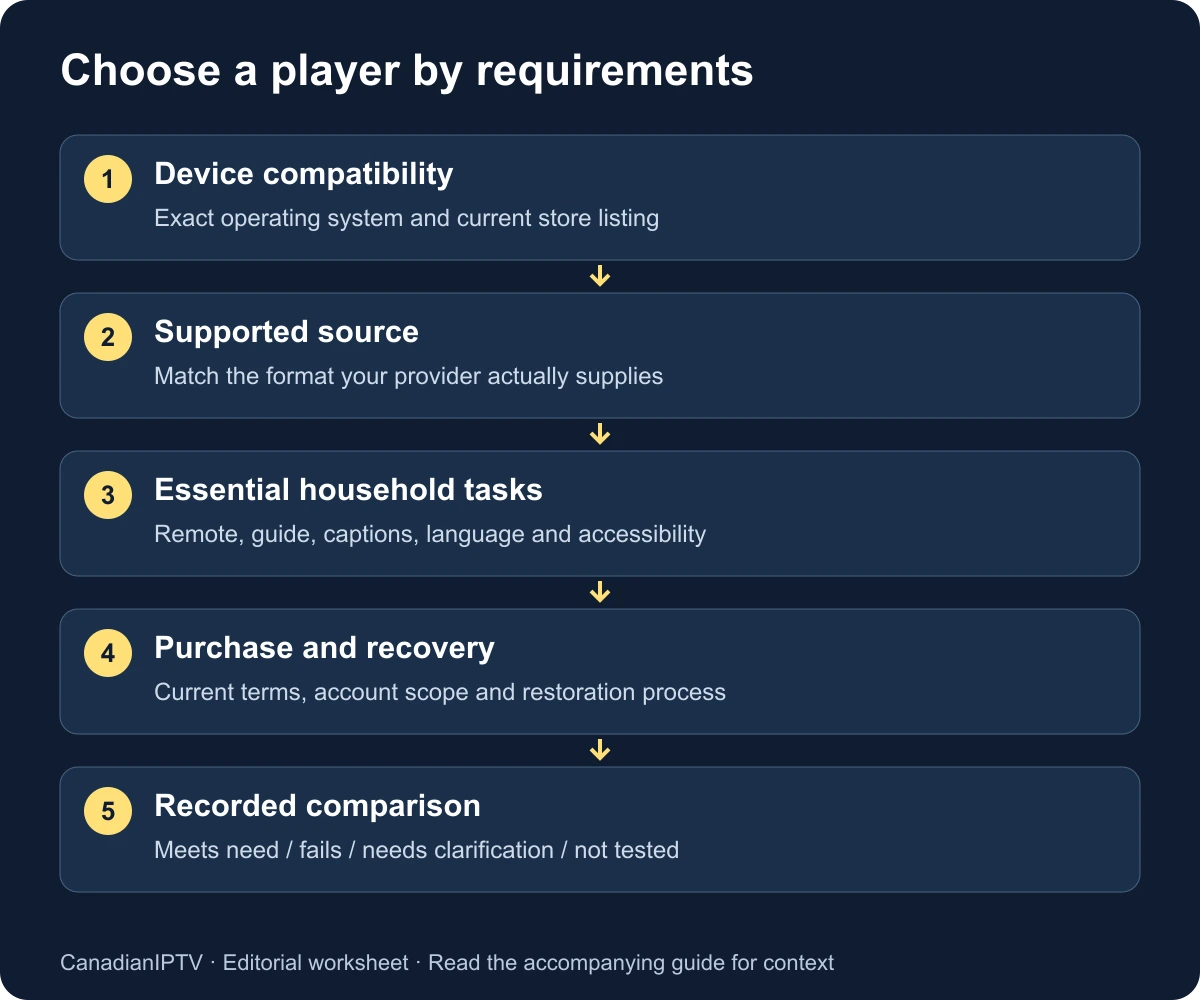
Make a short requirements list before comparing names
Write down the exact device and operating system you already own. For a built-in smart-TV app, include the television model and model year where available. For a streaming box, identify the box rather than only the brand of the television attached to it. An Android TV box connected to an LG screen runs a different app environment from the LG television's own webOS interface.
Next, list the content-source format your provider supports and the features the household truly needs. Keep essential requirements separate from conveniences. French audio for a specific programme, usable captions or readable guide text may be decisive; a decorative theme usually is not. Ask the people who will actually use the remote to help create the list.
Finally, decide how much configuration you are willing to maintain. A feature-rich player may require more initial organisation than a simple interface. That can be worthwhile for an enthusiast and frustrating for a relative who wants one familiar favourites screen. Choose around the operator's needs instead of assuming that more options always produce a better experience.
| Requirement | Example of a concrete question |
|---|---|
| Device | Does the current release support my exact operating system? |
| Source | Does it accept the format my provider actually supplies? |
| Navigation | Can I find and resume a favourite using the remote? |
| Accessibility | Can the intended viewer read labels and select required tracks? |
| Household use | What is stored per device or per account? |
| Purchases | Which features require payment, and what does that payment cover? |
| Recovery | Can I restore the configuration without guessing passwords? |
A dated shortlist based on documentation
The table records what the cited publishers describe. It is not a benchmark, endorsement of any content source or guarantee that a particular feature works with your subscription. Prices in Canadian dollars were not independently confirmed for every platform, so the table deliberately directs you to the current purchase screen rather than supplying a possibly incorrect amount.
| Player | Documented starting point | Candidate use | Confirm before purchase |
|---|---|---|---|
| TiviMate | Android TV focus; playlists, guide-oriented viewing and advanced viewing features | A television operated primarily with a remote | Current device compatibility, premium feature boundaries and account terms |
| Sparkle TV | Android TV/Google TV-oriented DVR/PVR player; several source formats | A household that wants to evaluate guide and recording workflows | Plus requirements, source support, storage and feature availability on the actual platform |
| Smarters Pro | Separate platform downloads; M3U and JSON media sources | A household comparing supported versions across devices | Exact product, publisher, login arrangement and platform-specific purchase terms |
TiviMate: a candidate for an Android TV shortlist
The official TiviMate website describes an Android TV player and says it is not optimised for phones or tablets. It lists features including multiple playlists, favourites, search, recording, catch-up and multiview. It also distinguishes a software upgrade from access to media content. These are documented capabilities, not results of our own performance testing.
That positioning makes it reasonable to include TiviMate when your primary task is television viewing with a remote on a supported Android TV device. It does not establish that it belongs on every Samsung, LG, Apple TV or Vega OS shortlist. Verify the operating system first, then inspect the current download and purchase route.
During evaluation, concentrate on the tasks that matter in your living room: finding a programme, returning to favourites, understanding guide focus and recovering after leaving playback. If an advanced feature is important, test it with an authorized source that supports it. A feature's presence in publisher documentation does not remove dependencies on the content source or device.
Sparkle TV: a candidate when guide and PVR tasks matter
The Sparkle TV Google Play listing describes support for sources including M3U, Xtream Codes and XMLTV, and lists guide, audio-track and subtitle functions. Features such as DVR, timeshift and multiview are identified as requiring Plus. The listing also cautions that most features are intended for Android TV or Google TV. Confirm the current listing on your device.
Sparkle belongs on a shortlist when you want to evaluate those particular workflows and can supply a compatible source. Begin with ordinary playback and guide navigation, then test the extra feature that motivated your interest. Do not pay for a complex recording arrangement before verifying the simpler path the household will use every day.
If recording is essential, describe the entire intended process: schedule a permitted programme, store it on a supported destination, find it later and play it back. Check the provider's terms and source capabilities before doing so. A listing's recording feature does not establish permission to record every programme or guarantee that a particular stream can be recorded.
Smarters Pro: compare the exact platform version
The Smarters Pro publisher provides separate platform links and identifies M3U and JSON support. Its current smart-TV section lists Samsung while describing LG availability as forthcoming. Verify the current device-store listing; a similarly named app should not be assumed to be this product.
This makes app identity particularly important when comparing across a household's devices. Save each platform's actual store link, publisher name and version. Do not infer that every purchase, setting or login method transfers between a phone app, a television app and an older Smarters-branded product.
Use the Smarters setup guide to organise the account and guide checks once you have identified the intended product. The comparison here is about whether that product belongs on your shortlist; the setup guide covers what to verify while configuring it.
Apply a platform filter before a feature comparison
“Smart TV” is not a single operating system. Built-in Samsung and LG environments differ from Android TV and Google TV, while Apple TV and Amazon Fire TV add other platform requirements. Search the store on the device itself, then compare the result with the publisher's link. A web search that finds a product name is not proof of installability.
For Fire TV, record the full model and operating system. Amazon's current Fire TV documentation includes Vega OS products, so an Android APK installation route cannot be assumed for every device bearing the Fire TV name. Use the Fire TV setup checklist before purchasing software for that arrangement.
Google's Google TV installation guidance describes finding and installing apps through the television interface. Use that supported route where the desired app is available. If a publisher supplies another route, verify its current compatibility and origin before following it; do not substitute an unrelated download mirror.
| Your arrangement | First compatibility check | Common mistaken assumption |
|---|---|---|
| Built-in television app | Exact TV operating system, model and store region | Every smart TV runs Android apps |
| Android TV or Google TV box | TV release and publisher-supported source format | A phone app will be comfortable with a remote |
| Fire TV device | Full model, Fire OS or Vega OS, supported distribution | All Firesticks accept the same package |
| Apple TV | Current tvOS listing and purchase requirements | An iPhone purchase guarantees identical television features |
| Multiple device types | Separate listing and entitlement for each | One app name means identical behaviour everywhere |
If none of the shortlisted players supports your built-in television, compare other officially supported players before buying new hardware. An external device is another option, but it adds cost, an HDMI input, another remote and ongoing software maintenance. Make that decision consciously rather than treating it as an automatic upgrade.
Compare the guide with real household tasks
Start with a small list of authorised streams and ask someone to find a programme without coaching. Observe whether they understand which row or programme has focus, how to return to playback and how to move between categories. Count the places where they become stuck rather than assigning an unexplained numerical usability score.
Check guide text at the normal seating distance. A dense grid that looks impressive in a promotional screenshot may be difficult to read across the room. Try the available display and text options and record whether they solve the actual difficulty. Keep the comparison consistent by using the same television and similar content where possible.
Look at schedule accuracy separately from guide design. Missing titles or shifted times may come from the guide source, mapping or time-zone configuration rather than the interface. Document the selected feed and source before attributing an information problem to the player. A visually attractive guide is only useful when its information matches the content being watched.
Create a short favourites list, close the app and reopen it. Test whether the list is retained and whether another household member can find it. If you need several profiles, verify that feature explicitly instead of assuming that multiple playlists and multiple user profiles mean the same thing.
Test subtitles, language and accessibility directly
For a household that needs captions, choose content known to include captions and test the complete task: enable them, adjust any available presentation options, resume playback and verify that the preference behaves as expected. Record the selected programme and track. A caption icon alone does not prove that captions are available on all streams.
For English and French viewing, distinguish the interface language from the audio or subtitle language of the content. An app translated into French can still receive a stream with only English audio. Ask the provider about the specific feed and then confirm it during playback. Do not use a language setting as evidence of catalogue coverage.
Where a viewer uses platform accessibility tools, include those tools in the evaluation. Check focus visibility, labels and ordinary navigation with the person's normal setup. We have not certified the shortlisted players for accessibility, and a feature list cannot replace this practical check. Record unresolved barriers as requirements the candidate has not yet met.
Consider recovery as part of accessibility. Can the viewer return from an accidental menu selection? Can they reach favourites after the app restarts? Is there a clear way to leave a search field? A household often benefits more from predictable everyday controls than from an extra feature that is difficult to discover or dismiss.
Assess recording, catch-up and multiview as separate projects
Advanced functions have dependencies beyond a menu button. A recording workflow needs a compatible source, permitted use, sufficient supported storage and a way to find the result. Catch-up depends on what the source makes available. Multiview can involve several simultaneous streams and must be checked against the provider's actual connection allowance.
Choose one advanced function to test at a time. For recording, use a short permitted example and inspect the complete saved result. For catch-up, choose a programme that the source explicitly makes available and test its start and end. For multiview, verify how many active streams are being requested before exceeding an account allowance.
Do not judge these features solely from a brief successful launch. A recording that begins is not necessarily complete; a catch-up menu can list unavailable content; several small windows may be impractical at the household's viewing distance. Define what success means before deciding that a premium upgrade is worthwhile.
If advanced features are optional, evaluate the player without them first. A simple, stable arrangement that satisfies the essential tasks may be preferable to a more complicated setup that nobody wants to maintain. This is a household preference, not a claim that one shortlisted product is universally superior.
Compare the full software cost and purchase scope
Open the purchase screen on the actual device and record the displayed currency, billing period, taxes where shown, renewal arrangement and feature list. Distinguish a one-time purchase from a recurring subscription. Save the current terms or receipt so you can identify the account and company responsible if you later need help.
Ask whether a purchase covers one device, several devices, one platform or a particular app product. Do not infer the answer from a provider's simultaneous-stream allowance; software licensing and service connections are separate. If several family members use different store accounts, verify whether the publisher supports the arrangement you intend.
Include configuration and maintenance time in your comparison. A lower purchase price can still involve more work if the setup is hard to recover or the household repeatedly needs assistance. Conversely, an expensive feature bundle may add no value if the only daily task is opening a small favourites list.
This guide does not publish unverified Canadian-dollar prices or universal refund promises. Store terms and regional arrangements can differ. Use the current purchase information for your account and retain unresolved questions as reasons to delay a software purchase, rather than filling the gaps with assumptions from another region's screenshot.
Run a fair comparison without changing everything
Use the same device, display, home connection and authorised source when the candidates permit it. Keep tests close in time and note any differences that cannot be controlled. If one candidate runs on a different box or a different source, acknowledge that you are comparing complete arrangements rather than isolating the software alone.
Choose a small set of tasks before starting: open the app, find a favourite, inspect the guide, select subtitles, resume playback and recover after closing. Add the one advanced feature you actually need. Use a simple result vocabulary such as works, fails, awkward or not tested, with a short observation beside each entry.
| Task | Candidate A | Candidate B | Evidence to retain |
|---|---|---|---|
| Install on intended device | Not tested | Not tested | Listing and version |
| Open authorised source | Not tested | Not tested | Supported method; no secrets |
| Find favourite with remote | Not tested | Not tested | Where the viewer became stuck |
| Read guide from sofa | Not tested | Not tested | Seating distance and display setting |
| Use required captions/audio | Not tested | Not tested | Programme and track |
| Restore after restart | Not tested | Not tested | Preferences retained or missing |
| Understand purchase scope | Not verified | Not verified | Current terms and account |
Leave untested cells untested. A blank observation should not become a pass because the product's website lists a feature. If two candidates meet all essential needs, let household preference and maintenance effort decide. There is no need to manufacture a universal winner from a small personal comparison.
Choose, document and maintain the setup
Keep a short decision note explaining why the chosen player fits: the device it supports, the source method that works and the everyday tasks it satisfies. Include any limitation you accepted. This note will be useful when a later update changes the interface or when another person helps maintain the television.
Before deleting the alternative player, check whether it contains credentials, playlists or purchase information you need to retain securely. Remove private account details from devices you no longer use. Keep official publisher and support links, and avoid saving an old package as your only future installation route.
Review the setup when the operating system, player, provider format or household needs change. You do not need to repeat a full comparison after every minor update, but a missing essential feature or newly unsupported platform is a meaningful reason to reassess. Record the change that triggered the review rather than replacing software because a new listicle calls something else “best.”
Use the installation hub for the next setup step. For choosing and testing a service account, the trial checklist addresses a separate decision. Keeping those decisions distinct helps you avoid paying for software to solve a problem that actually belongs to the service, device or connection.
Keep the comparison worksheet with the chosen app’s version number so a later review starts from an identifiable configuration.
Frequently asked questions
Which IPTV player is best for every Canadian household?
There is no evidence here for one universal winner. Start with the exact device, supported source format and essential household tasks. The shortlist provides documented candidates and a repeatable comparison method; it does not claim independent lab results or identical availability across platforms.
Can I install an Android TV player directly on any smart TV?
No. Check the television's operating system and store. A built-in Samsung or LG environment should not be treated as Android TV. A separate compatible streaming box can supply another platform, but it is a separate device choice with its own cost and setup requirements.
Does a premium app purchase add channels?
Check what the purchase explicitly includes. The shortlisted products describe software players; their premium features should not be confused with a streaming provider's content entitlement. Keep the app receipt and service subscription details separate so you know which company handles each issue.
Can a different player fix every playback problem?
No. A player comparison may reveal a compatibility or interface difference, but playback also depends on the source, device and connection. Keep those conditions controlled where possible. If the problem follows one stream across supported players, investigate that evidence before purchasing another app.
Should I compare apps using online star ratings?
Ratings can suggest questions to investigate, but they do not establish how the current version works with your device and source. Check dates, platforms and the specific issue described. Base the decision on verified requirements and your own recorded tasks, not on a score detached from your setup.